Littlelands Tools Hub
Controls, specs, and character creator reference for a smoother cozy adventure.
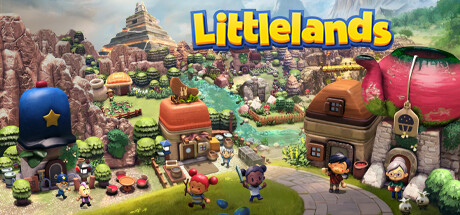
The Tools hub collects practical reference pages for Littlelands on Steam Early Access. When you need button layouts, PC specs, Steam Deck notes, or a refresher on character customization, start here instead of digging through patch notes. These pages complement the gameplay guides under Guides — they do not replace farming or combat advice, but they remove friction so those systems feel better.
Littlelands is a single-player cozy adventure from Rafael Martín and Kyle Creamer, published by Apogee Entertainment. It entered Early Access on November 16, 2026 for Windows, supports English and Spanish, and recommends a gamepad while still offering mouse and keyboard with rebinding and optional camera auto-rotation.
Pages in this hub
Controls
Gamepad-first setup, rebinding for controller and keyboard, camera auto-rotation, Focus Glow, minimap habits, and FPS cap notes. Read this if defaults feel awkward or you are moving between desk and handheld play.
System Requirements
Minimum specs (Intel Core i3, 4 GB RAM, GTX 560 / Radeon HD 6970, 4 GB storage), Windows notes, Steam Deck expectations, and why an FPS cap helps thermals and battery.
Character Creator
Hairstyles, eyes, facial cosmetics, clothes, hats (including playful options like a fish hat), and how to think about cosmetics versus early tool spending.
How tools pages fit your first week
- Create a look you like in the character creator.
- Confirm controls and enable Focus Glow plus the minimap.
- Verify your PC or Deck can run the game comfortably with a sensible FPS cap.
- Jump into Getting Started and plant your first berries.
- Use Early Tools when choosing what to unlock with treasure money.
Quality-of-life features worth knowing
Early Access and the pre-launch demo refresh added several comfort options players asked for:
- Minimap for towns and countryside navigation.
- Focus Glow to highlight interactable and pick-up objects.
- Rebindable controls on gamepad and mouse and keyboard.
- Camera auto-rotation for mouse and keyboard explorers.
- FPS cap in graphics settings.
Together these make the claymation-like world easier to read without changing the cozy tone. Details for each live on the Controls and System Requirements pages.
When to come back to Tools
Return here after a major patch if bindings reset, when you buy a new controller, when you install on a different machine, or when new cosmetic options land. For roadmap and feedback channels, see Early Access. For Steam and social destinations, use the Links Hub.
Littlelands is intentionally light on hardware demand and flexible on input. Spend a few minutes in this hub, then get back to fishing ponds, berry rows, and optional goblin fights with fewer technical distractions.
Recommended setup order
Players who bounce between a desktop and a Steam Deck sometimes configure controls twice and forget graphics caps on the handheld. Use this order once per machine:
- Launch into the character creator and confirm UI text is readable at your resolution.
- Open settings and enable the minimap plus Focus Glow before leaving the first town square.
- Rebind dodge, lock-on, interact, and tool-swap until muscle memory feels obvious.
- Set an FPS cap that matches your display or battery goal.
- Take a five-minute live test: talk to an NPC, dig once, fish once, lock onto one weak enemy.
- Only then start a longer Farming or Exploration session.
That checklist prevents the common Early Access frustration of discovering mid-dungeon that dodge sits on an awkward button.
Tools hub versus gameplay hubs
Use Tools for inputs, specs, and cosmetics. Use Guides for verbs — plant, dig, fish, fight. Use Tier List when currency decisions compete. Use Updates when a patch lands and you wonder what changed. Keeping those jobs separate stops this wiki from turning every page into a repeated beginner speech.
If you arrived from a search for “Littlelands controls” or “Littlelands Steam Deck,” you are in the right hub. Finish Controls and System Requirements, then jump to Getting Started so technical comfort turns into actual berry rows and shovel loot.
Accessibility-minded tips
- Prefer higher-contrast hats and hair in the character creator if you play on a small Deck screen.
- Keep Focus Glow on if busy claymation-like scenes make interactables hard to spot.
- Lower camera sensitivity if motion comfort matters more than snappy turns.
- Cap FPS to reduce fan noise during long fishing evenings.
- Revisit bindings after patches; Early Access can shuffle defaults while systems evolve toward late 2027.
Related reading outside Tools
Combat players should still skim Combat after rebinding lock-on. Collectors should open Fishing and Bugs once Focus Glow is enabled. Treasure hunters belong in Exploration with a shovel equipped. When you need official store or Discord destinations, leave Tools for the Links Hub.
Spend the short setup tax once. The rest of Littlelands — sunsets on the farm bench, optional Goblin Boss attempts, insect nets on jungle trails — plays better when your hands and hardware are already sorted.
Frequently Asked Questions
Quick answers about farming, combat, exploration, and Early Access.
Does Littlelands support controllers?
Yes. Steam lists full controller support and recommends playing with a gamepad. Rebinding is available for gamepad and mouse and keyboard.
Where do I find Focus Glow and the minimap?
Both are quality-of-life features discussed on the Controls page. Enable them early so interactables and trails are easier to read.
Is Littlelands demanding on PC?
No. Minimum specs are an Intel Core i3, 4 GB RAM, GTX 560 or HD 6970 class GPU, and 4 GB of storage. See System Requirements for Deck notes.
Can I customize my character beyond the first screen?
Early Access expands hairstyles, eyes, cosmetics, clothes, and hats. The Character Creator page summarizes what to expect and how to prioritize looks versus tools.